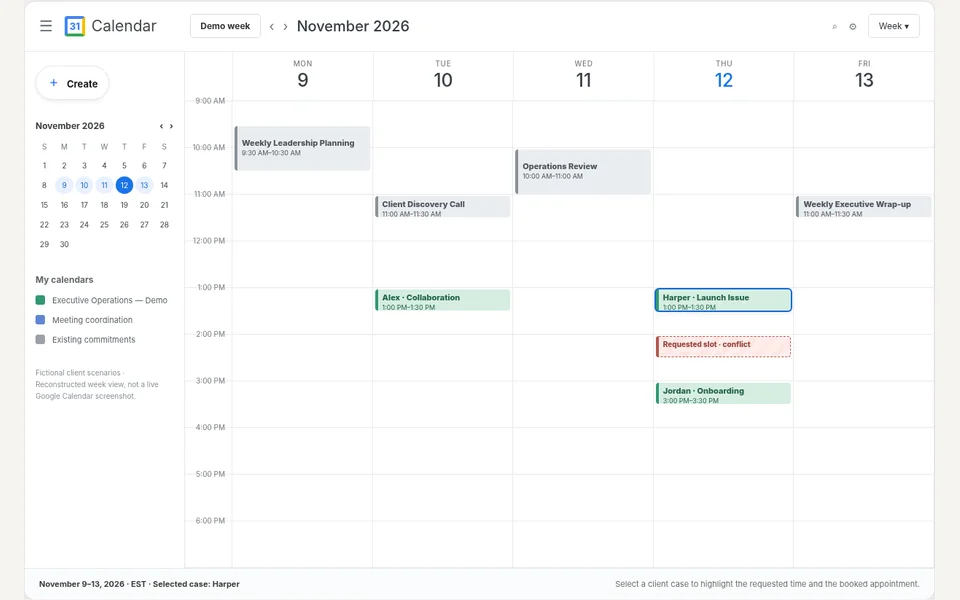
 Independent project · Fictional client scenarios
Executive Scheduling & Meeting Coordination
Google Calendar scheduling exercise with conflict resolution, meeting agendas, and action tracking.
- Google Calendar
- Google Docs
- Google Sheets
A Gmail workflow built around automatic labels, dedicated views and clear priorities. Less time sorting email, more time doing the work.
Human-reviewed priority label
Specific outstanding replies · manually tracked
Try it: switch between Before and Organized, or click a label or a priority view. Click a message to preview it.
Fictional messages. A Gmail-inspired illustration, not a live account.
Actual figures from a personal Gmail organization project. Archived messages stayed in All Mail.
723
Emails archived
Outdated promotional clutter moved out of the Inbox, not out of the account.
188
Messages screened
An AI-supported audit of recent messages and selected conversations.
0
Emails deleted
The cleanup was non-destructive; every original message was kept.
Three cleanup batches took the Inbox from 7,327 to 6,604 messages at that point in time.
Automatic labels put matching messages into their views. Predictable email needs no manual moving or sorting, and the label views make it quick to scan.
01 / Arrives
A new message arrives from a known sender or with a predictable subject.
✉ Invoice ready for review02 / Matches
A native Gmail rule recognizes the sender or subject and applies a label.
IF subject contains “invoice”03 / Organizes
The email appears in the matching label view, without leaving the normal Inbox.
● Receipts & billingExample only: the invoice rule shows how Gmail filtering works. The real project set up rules and views for job applications and opportunities; this business layout shows the same workflow for a client. Gmail's Multiple Inboxes setting can show label views next to the normal inbox.
Native Gmail filters handle the predictable filing. When a message needs context, AI can help read selected threads and suggest next steps. It does not reply on its own or change the inbox.
Client control comes first. Using AI with a client's email would need their permission and suitable privacy safeguards.
Matching conditions → automatic labels → focused views.
Summaries of selected messages, suggested actions and draft replies, all for review.
A person decides priority, deadlines, follow-up labels and every outgoing message.
Not an inbox-zero stunt. A repeatable system that keeps important email visible, cuts repetitive filing and leaves a person in charge of what happens next.
Independent project · Fictional client scenariosGoogle Calendar scheduling exercise with conflict resolution, meeting agendas, and action tracking.
 Workplace project
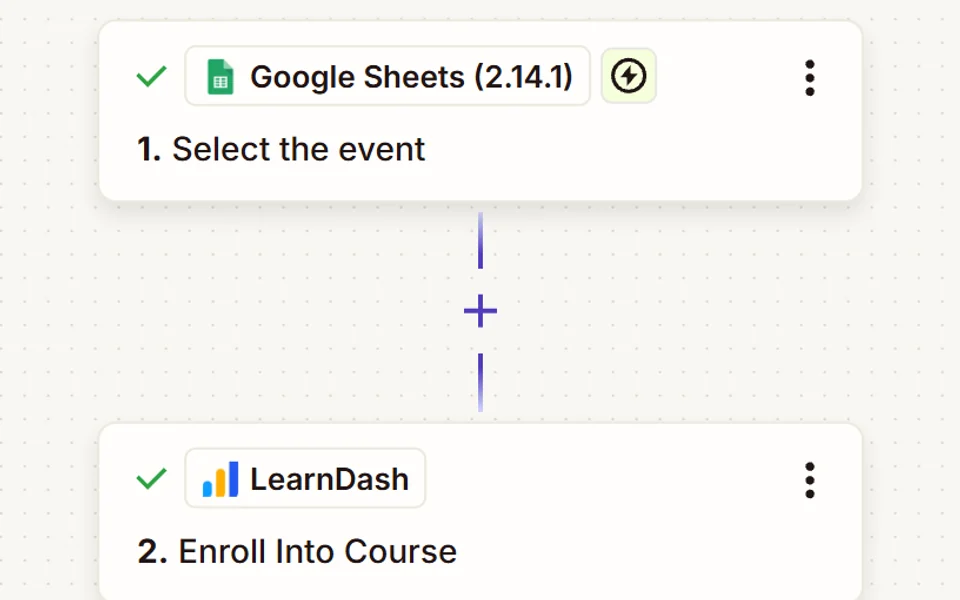
Automated learner account provisioning, LearnDash enrollment, and access notifications through an integrated staff-facing workflow.
Ongoing support or one specific project. A few lines on what you need is plenty, and I reply by email.
 Ken Macawili